Xentral Shopify Integration 2026 | Step-by-Step Guide
Connect Shopify with Xentral: step-by-step guide. Sync orders, inventory, and variants. Includes troubleshooting tips.
Shopify–Xentral Integration: Quick Answer
Yes, Shopify can be connected to Xentral — via the official Shopify Connector in Xentral Connect. Setup takes 1–2 hours and synchronizes orders, inventory, and tracking numbers. Prerequisite: Xentral Starter plan or higher.
| What is synchronized? | Direction |
|---|---|
| Orders | Shopify → Xentral |
| Inventory levels | Xentral → Shopify |
| Tracking numbers | Xentral → Shopify |
| Product data | ❌ Not automatic |
You have a Shopify store and want to connect it with Xentral? That's a great decision that will take your business to the next level. But I want to be upfront with you: the integration can be tricky, especially if you have many variants or specific workflows.
Over the past few years I have set up dozens of Shopify–Xentral integrations — from small single-product stores to large shops with thousands of items. The experience I have gained in the process feeds into this guide. You will get not only the technical steps, but also the tips that don't appear in any official documentation.
Why This Integration Matters
Before diving into the technical details, I'd like to briefly explain why the Shopify–Xentral integration is a game-changer for many e-commerce businesses.
Without an integration you are working with two separate systems. Orders have to be transferred manually or exported and imported. Inventory has to be maintained in two places. This works when you have only a few orders per day, but as volume increases it becomes a nightmare. You lose track, make mistakes, and oversell items that are no longer in stock.
With a working integration, this is what happens: when an order comes into Shopify, it automatically appears in Xentral. The inventory is reserved, the invoice can be created, and the fulfillment process starts. When you ship the item and enter the tracking number, your customer automatically receives a shipping confirmation via Shopify. And when inventory changes in Xentral — due to new stock, returns, or a stocktake — Shopify is updated automatically.
The result is a single source of truth for your data. You manage products, prices, and inventory in Xentral, and all connected channels are synchronized automatically. This not only saves time but also prevents errors.
Expert insight: "The Shopify–Xentral integration runs without issues for 90% of my clients. The remaining 10% have problems with variant mapping or specific workflows — but those can be resolved." — Fabian, XentralExperte.at
What Is Synchronized Between Shopify and Xentral?
Before you start the setup, you should understand what the integration can and cannot do. This prevents unrealistic expectations and helps you plan your processes accordingly.
What Is Synchronized Automatically
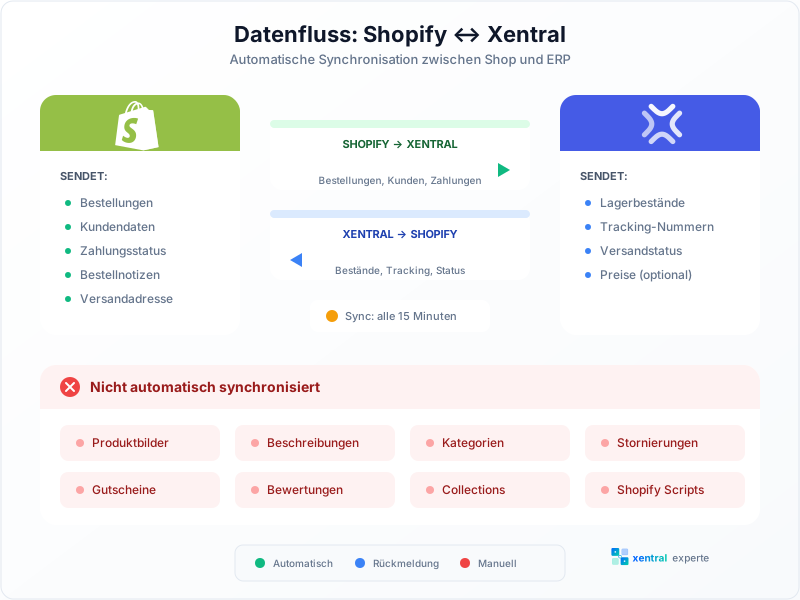
The Shopify–Xentral integration via Connect synchronizes the following data automatically:
From Shopify to Xentral:
- New orders with all details such as customer, address, items, and prices
- Payment status and payment method
- Customer data for new customers
- Order notes and tags
From Xentral to Shopify:
- Inventory levels in real time or at intervals
- Shipping status and tracking numbers
- Optionally: prices and product data
What Is Not Synchronized Automatically
Some things must be handled manually or via workarounds:
Product images: The integration is primarily designed for operational data. Images and media must be maintained in Shopify or synchronized separately via the API.
Descriptions: Product descriptions are not synchronized bidirectionally. You need to decide whether Shopify or Xentral is the leading source.
Categories and collections: Shopify Collections and Xentral product groups are different concepts. There is no automatic mapping.
Cancellations: If you cancel an order in Xentral, this is not automatically reflected in Shopify. You have to do that manually.
These limitations are important to know so that you can design your processes accordingly.
Before You Start: Check the Prerequisites
Thorough preparation saves you a lot of trouble later. Here is what you need.
In Xentral
You need an active Xentral account, at least on the Starter plan. The Launch plan generally supports integrations, but the Shopify Connector is only available from Starter onwards.
You also need at least one warehouse set up. That sounds obvious, but I have seen clients who wanted to start without a warehouse. The integration needs a warehouse as the source for inventory data.
Your master data should also be in place: payment methods, shipping methods, and at least one project for the orders. If you haven't set that up yet, now is the right time.
In Shopify
You need admin access to your store — not just staff access, but genuine admin rights. Installing the app requires certain permissions that only admins have.
Your store should be live, i.e. not in password-protected mode. The integration does not work with protected development stores. If you are still setting things up, you can temporarily disable password protection, set up the integration, and then re-enable it afterwards.
Choosing the Right Connector
Xentral offers two ways to connect Shopify:
| Connector | Status | Recommendation |
|---|---|---|
| Shopify Connector (Connect) | Actively developed | Recommended for all new projects |
| Shopimporter (Classic) | Legacy | Only for existing setups |
The Shopify Connector is the modern option and is under active development. It runs as a separate container, which improves performance and provides greater stability. The old Shopimporter still works, but receives no new features. You can find the official documentation in the Xentral Help Center.
This guide refers to the Shopify Connector. If you are still using the old Shopimporter, I recommend migrating — the effort is well worth it.
Part 1: Installing the Connector in Xentral
Installing the connector is the first step. No data synchronization happens at this stage; you are simply preparing Xentral for the connection.
Step 1.1: Navigate to the Connector
Open Xentral and click the gear icon in the top right to access the settings. From there, navigate to "Settings", then "Sell", then "Shops/Marketplaces". In the list of available integrations you will find the "Shopify Connector".
If you don't see the connector, check your Xentral plan. It may not be available in the Launch plan or may need to be activated separately. For more details on plan differences, visit the official Xentral pricing page.
Step 1.2: Install the App
Click "Install App". In the background, a Docker container is now started to run the connector. This can take one to two minutes — be patient.
After installation, the page reloads and you see the connector dashboard. This is a dedicated interface within Xentral where you manage all integrations.
A common problem at this point: sometimes the page freezes or shows an error. In most cases, simply reloading the page (F5) or waiting a few minutes helps. If the problem persists, it is often related to the Xentral instance itself — contact support in that case.
Part 2: Connecting Your Shopify Store
Now things get serious: you connect your Shopify store to Xentral. This step requires admin access to Shopify.
Step 2.1: Create a New Integration
In the connector dashboard, click "+ New Integration". Give it a meaningful name — this matters when you have multiple stores. I recommend something like "Main Store EN" or "Shopify B2C" so you know what's what later.
Step 2.2: Authorize the Connection
The recommended method is the Public App installation. Enter your Shopify URL — just the store name, without the protocol or domain. So if your store is at "my-great-store.myshopify.com", enter only "my-great-store".
Click "Connect". You will be redirected to Shopify. If you are not logged in, you need to log in now. Shopify will then show you the permissions the connector requires. Read through them — they cover orders, products, inventory, and customers.
Click "Install App" and you will be redirected back to Xentral. If everything worked, you will see "Connection successful".
If it doesn't work: scroll down to the troubleshooting section, where I address the most common errors.
Part 3: Configuring the Features
After a successful connection, you need to configure which data is synchronized and how. This is the most important part of the setup, because here you decide how your system operates.
Overview of Available Features
| Feature | Function | My Recommendation |
|---|---|---|
| Import orders | Orders from Shopify to Xentral | Always enable |
| Sync inventory | Inventory from Xentral to Shopify | Always enable |
| Sync prices | Prices from Xentral to Shopify | Only if Xentral is the master |
| Transfer products | Sync master data | As needed |
Step 3.1: Configure Order Import
Click "Orders" and apply the following settings:
Which orders to import? The most important filter is the order status. I recommend importing only orders with the status "Processing". These are paid orders ready for fulfillment. "Pending" orders have not yet been paid — you typically don't want these in Xentral because they skew your statistics and tie up capacity unnecessarily.
Which project? Select an Xentral project for the Shopify orders. I recommend creating a dedicated project such as "Shopify Sales" or "B2C Shop". This makes it easier to evaluate later which revenue came through which channel.
Payment status: Depending on the payment method in Shopify, set the corresponding status in Xentral. For PayPal, credit card, and other instant payments I recommend "paid". For invoice or prepayment use "open", so you can confirm receipt of payment manually.
Customer assignment: Configure how customers are handled. For new customers, Xentral can automatically create a new customer master record. For existing customers, the mapping can be done via email address.
Save the settings before continuing.
Step 3.2: Configure Inventory Synchronization
Click "Inventory" and apply these settings:
Which warehouse? Select the Xentral warehouse whose stock should be transferred to Shopify. With multi-warehouse setups you need to decide: do you aggregate all warehouses, or is a specific warehouse responsible for online sales?
A practical tip: if you have a main warehouse and an external warehouse and both should be available online, aggregate the stocks. If you have a dedicated e-commerce warehouse and a B2B warehouse that should not be sold online, select only the e-commerce warehouse.
Buffer quantity: Optionally, you can set a safety reserve. If you enter "5" here, Shopify will always display 5 fewer units than are actually in Xentral. This protects against overselling when there is a synchronization delay. I recommend a buffer of 2–3 units for fast-moving items.
Sync interval: The default is every 15 minutes, which is sufficient for most stores. For high-volume stores with rapid sell-through, a shorter interval can make sense. Keep in mind that more frequent syncs consume more resources.
Part 4: Mapping Products Correctly
Product mapping is the area where most problems occur. Xentral and Shopify need to know which product in system A corresponds to the product in system B. This happens via matching fields.
Understanding SKU Matching
The simplest case is identical SKUs in both systems. If your product in Shopify has the SKU "ABC123" and the item number in Xentral is also "ABC123", the mapping happens automatically — no further configuration required.
In practice, things often look different. Perhaps your Xentral item numbers are more detailed, or Shopify has different SKUs because someone set them up differently years ago. In that case you need external numbers.
Setting Up External Numbers
External numbers are an Xentral feature that allows you to store additional numbers for each product that are used in external systems. Here's how to set them up:
Open the product in Xentral and click the "External Numbers" tab. Create a new entry. As the shop, select "Shopify" (or the name of your integration). As the number, enter the Shopify SKU or product ID.
After saving, Xentral knows: "When Shopify orders item XYZ, that corresponds to our item ABC."
The Special Case of Variants
Variants are the most common stumbling block. Shopify treats variants as independent objects with their own IDs, while Xentral often structures variants differently.
In Shopify, every variant has a unique variant ID that differs from the product ID. For a clean mapping you need to store these variant IDs as external numbers.
How to find the variant ID: go to the product in Shopify, click on a variant, and look at the URL. At the end there is a long number — that is the variant ID. Alternatively, you can use the Shopify API or browser developer tools.
For each variant product in Xentral you then create an external number with the corresponding variant ID.
Yes, this is time-consuming when there are many variants. For stores with thousands of variants, an import script that automates the mapping is worthwhile. I can set that up for you if needed.
Part 5: Testing Before Go-Live
Before you put the integration into production, you should test thoroughly. Nothing is more frustrating than problems that only surface once real customer orders are affected.
Test 1: Manual Sync
Go to the connector journal and click "Manual Sync". The connector now attempts to synchronize all configured data. Check the results afterwards:
Were orders imported? If so, is the data correct? Open an imported order in Xentral and compare it with the original order in Shopify. Address, items, prices, payment status — everything should match.
Were inventory levels transferred? Check in Shopify whether the stock numbers match Xentral.
Are there errors in the log? The journal shows all synchronization activities and errors. Read through it carefully.
Test 2: Place a Test Order
Create a real test order in your Shopify store. Use a test product and a test address (your own works well). Complete the order and wait a few minutes.
Then check in Xentral: has the order arrived? Was the correct product mapped? Do all fields match?
If you use a test payment service such as Bogus Gateway, you can also test the payment flow.
Test 3: Check Inventory Synchronization
Change the inventory of a test product in Xentral — for example from 100 to 95. Wait for the next sync or trigger it manually. Check in Shopify whether the inventory has changed.
Also test the reverse: what happens when an order reduces the inventory? Is Xentral updated correctly?
Part 6: Going Live
Once all tests have passed, you can put the integration into production.
Go to the connector settings and set the integration mode to "Active". Enable automatic sync. Save everything.
From now on, synchronization runs automatically. New orders in Shopify appear in Xentral, and inventory changes are sent back.
Congratulations! Your Shopify store is now connected to Xentral.
Real-World Example: A Live Integration
To give you a sense of the effort involved and the results you can expect, here is an anonymized example from my practice.
The starting situation: An online shop for outdoor accessories with approximately 1,200 products and 8,000 variants. Around 800 orders per month, primarily through Shopify. Orders were previously transferred manually from Shopify to Xentral — a staff member spent one hour on this every day.
The challenges: The large number of variants made the setup complex. There were also mismatched SKUs because the store had grown organically over time. Some products had bundles that didn't exist as such in Xentral.
The approach: First, we created an SKU mapping that matched the Shopify SKUs to the Xentral item numbers. This was spreadsheet work — time-consuming but necessary.
We then imported the external numbers into Xentral in bulk. A CSV import with 8,000 rows that took only a few minutes to process.
The bundle products were mapped as bill-of-materials structures in Xentral. When someone orders a bundle in Shopify, Xentral automatically resolves the BOM.
The result: The daily hour of manual work is a thing of the past. Orders appear in Xentral automatically, and tracking numbers are sent back to customers automatically. Inventory synchronization runs every 15 minutes.
The effort: The entire integration, including preparation, setup, and testing, took approximately 20 hours. The main effort was the SKU mapping and variant assignment.
Common Errors and Solutions
Even with careful setup, problems can occur. Here are the most common ones and their solutions.
Error: Store Cannot Be Connected
Possible causes: The store URL is entered incorrectly. Remember: only the store name, not the full URL. Another common reason is that the store is in password-protected mode. Sometimes firewalls or proxies also block the connection.
Solution: Double-check the URL. Temporarily disable password protection. On corporate networks it can help to test the connection from a different network.
Error: Orders Are Not Being Imported
Possible causes: The status filter is configured incorrectly — perhaps only "Processing" orders are being imported, but your orders have a different status. Or no project has been assigned for the orders to be imported into.
Solution: Check the filter settings. Look at the status of your test order in Shopify and make sure that status is included in the filter. Ensure that a project is selected.
Error: Inventory Levels Do Not Match
Possible causes: The wrong warehouse is selected as the source. The SKU mapping is not working correctly. For variants, external numbers may be missing.
Solution: Check systematically: is the correct warehouse configured? Are SKUs being matched correctly? Open an affected product and check the external numbers.
Error: Variants Are Not Recognized
Cause: Shopify uses variant IDs that differ from SKUs. Without the correct external number mapping, Xentral cannot identify the variant.
Solution: Find the variant ID in Shopify and store it as an external number in Xentral for the corresponding variant product.
Pro Tips for Day-to-Day Operations
After setup, there are some best practices that improve operations.
Set Up a Sales Channel
Create a "Shopify" sales channel in Xentral and assign all Shopify orders to it. This makes it easy to evaluate later how much revenue came through the online store, what margin you achieved there, and how the channel is developing.
Use Xentral as the Master System
Decide which system is the source of truth — and it should be Xentral. Manage prices, descriptions, and master data primarily in Xentral and synchronize them to Shopify, not the other way around. A single source of truth prevents inconsistencies.
Report Order Status Back
Configure the reporting of shipping status. When you mark an order as shipped in Xentral and enter the tracking number, this should automatically be sent to Shopify. The customer then receives the Shopify shipping notification with the tracking link. This is professional and saves you manual work.
Check the Journal Regularly
Look at the connector journal at least once a week. Small errors — an unmatched product, a failed synchronization — are caught early this way. If you ignore them, they can grow into bigger problems.
Frequently Asked Questions (FAQ)
How quickly are new orders imported?
This depends on the configured sync interval. The default is every 15 minutes. The interval can be shortened if needed. Real-time import is possible via webhooks but requires additional configuration.
Can I connect multiple Shopify stores to one Xentral instance?
Yes, this is possible. You create a separate integration for each store. Make sure to use different projects and sales channels so that you can distinguish the data later.
What happens when an order is cancelled in Shopify?
Cancellations are not synchronized automatically. You need to cancel the order in Xentral manually. This is a known limitation of the integration.
Does the integration also work with Shopify Plus?
Yes, Shopify Plus is supported. There are no particular restrictions.
Can B2B prices also be synchronized?
This depends on your Shopify setup. If you use Shopify B2B features, the integration is more complex. Get in touch if you need that.
What does the integration cost per month?
The Shopify Connector is included in most Xentral plans. There are no separate monthly costs for the core functionality. Some advanced features may cost extra.
Post-Setup Checklist
Before you consider the integration complete, work through this list:
- Test order imported successfully
- All product mappings are working
- Variants are recognized correctly
- Inventory levels are being synchronized
- Tracking transmission is working
- Journal shows no errors
- Production mode is activated
- Team has been briefed
Further Resources
- Xentral Help Center - Shopify - Official documentation
- Xentral Academy - Video tutorials and training
- Xentral on the Shopify App Store - App installation and reviews
Related Articles
- Xentral Flows Automation Guide – Process orders automatically
- Xentral DATEV Export Troubleshooting – Accounting after Shopify integration
- Xentral Costs & Pricing 2026 – What does the integration cost?
- Xentral vs. Billbee Comparison – Why Xentral instead of Billbee?
Next Steps
After successfully connecting Shopify, you can set up further integrations:
- Set up DATEV – Automate accounting – More on integrations
- Connect shipping providers – Automate DHL, DPD, Hermes – More on integrations
- Automation with Flows – Automate processes – To the Flows guide
Need Support?
The Shopify integration can be tricky — especially with many variants, mismatched SKUs, or specific requirements. I have set up dozens of these integrations and know the pitfalls.
If you're interested, I can set up the connection for you professionally, including SKU mapping, variant assignment, and testing. My hourly rate is €120, and in a free initial consultation I will give you an effort estimate.

Xentral Consultant & E-Commerce Expert
After building my own logistics business (€3.5M revenue, around €35M in customer volume processed through Xentral), I now consult SMEs on Xentral implementation. Practitioner knowledge, not theory.
Questions about this topic? I'm happy to help — free of charge and without obligation.
Book a free consultation